Conquer The World WW2 Controls
Map navigation, panel shortcuts, and order commands so you stop hunting through menus mid-crisis.
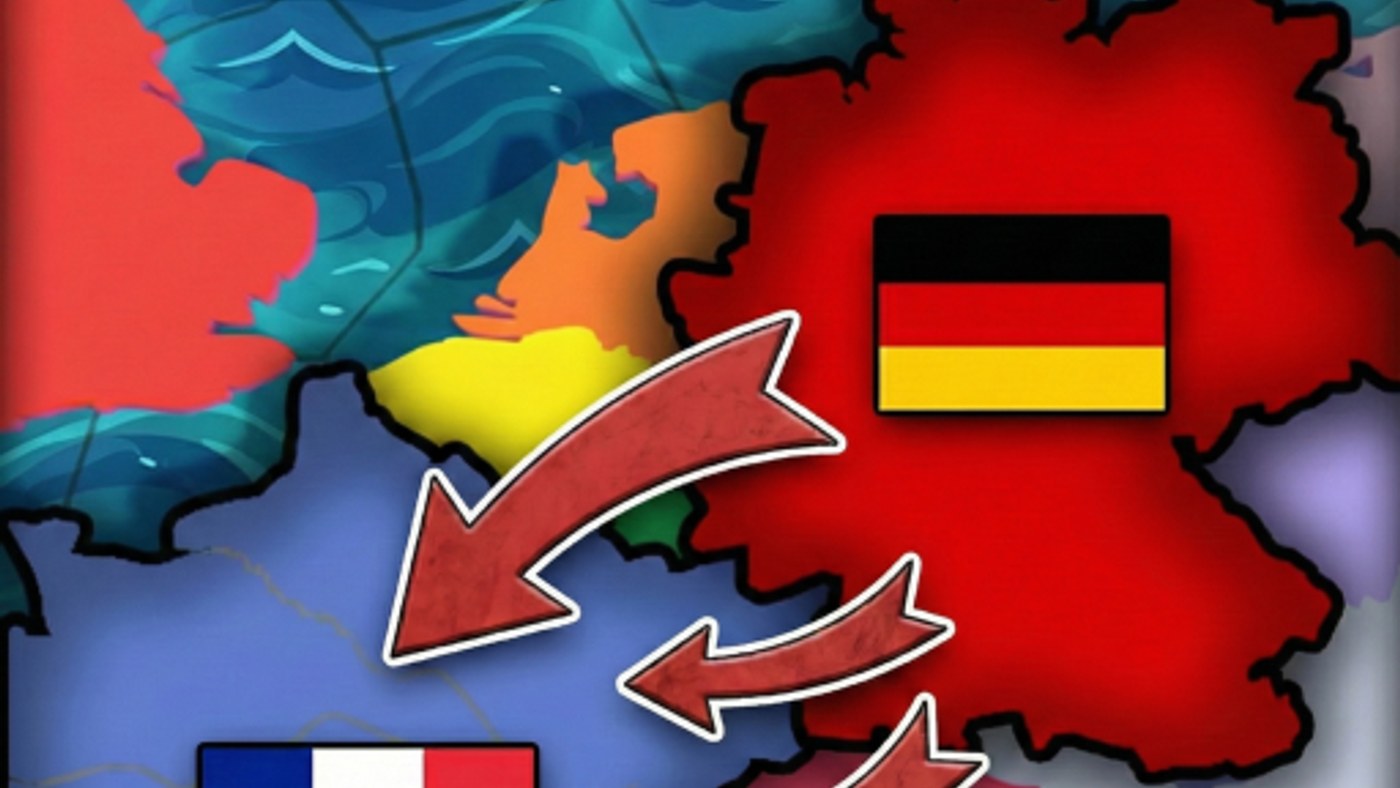
Conquer The World WW2 (CTWWW2) is played almost entirely through mouse-driven panels layered over a world map, closer to a PC strategy game than a typical Roblox experience. Because the interface packs in production, research, diplomacy, and combat orders, knowing where everything lives before a war starts saves you critical seconds when a front collapses.
Camera and map navigation
- Left-click drag pans the camera across the world map.
- Scroll wheel zooms in and out, from a single province up to the full globe.
- Click a province to select it and see its owner, resources, and current buildings.
- Click a nation on the map or in the nation list to inspect its army size, factories, and diplomatic status before deciding whether to engage.
If you are brand new to the game, pair this page with Getting Started for the broader first-session checklist.
Core menu panels
CTWWW2’s HUD is built around a row of panel buttons, each opening a full-screen or side-panel interface:
- Production panel — queue civilian and military factory construction and equipment output. This is where the guidance in Economy & Factories becomes actionable.
- Research panel — spend research points across industry, infantry, armor, air, and naval trees. See Research & Nukes for priority order.
- Diplomacy panel — send trade offers, request alliances, create puppet states, or issue war justifications. Covered in depth in Diplomacy.
- Army/Front panel — assign divisions to fronts, view manpower reserves, and issue attack or defend orders. See Warfare for how fronts actually resolve combat.
- Shop panel — cosmetic skins and code redemption live here; see Codes if you want a walkthrough.
Issuing army orders
Unlike a real-time shooter, you are not directly controlling soldiers. Instead:
- Open the Army/Front panel and select the front or border you want to act on.
- Choose an order type — typically attack, defend, or reposition — for the divisions stationed there.
- Confirm manpower and equipment are sufficient; a front with under-equipped divisions will perform poorly even with a numbers advantage.
- Watch the front line move in real time as the order resolves; combat is continuous rather than turn-based.
Keyboard shortcuts worth learning
While CTWWW2 is primarily mouse-driven, most panels support quick-open shortcuts and the Escape key reliably backs out of any open menu — useful when you need to snap back to the map during an active attack. Because Marian_Dev periodically adjusts the UI (see the Updates hub for the latest patch notes), it is worth re-checking each panel after a major update in case a shortcut moved.
Tips for smoother control
- Keep the Army/Front panel and the Diplomacy panel bookmarked mentally — most emergencies during a match come from one of those two.
- Zoom out to the full map regularly to catch enemy troop buildups you might miss while zoomed into your own border.
- Practice queuing production and research in a quiet moment, not mid-battle — panel navigation is far faster once it is muscle memory.
- If you play with a controller-style setup or on a smaller screen, expect some panels to require extra scrolling; CTWWW2’s interface is optimized for a standard mouse and keyboard.
Next steps
Once the interface feels natural, move on to Economy & Factories to start optimizing production, or jump straight to Warfare if you already have a war on your hands and need to understand how fronts resolve combat.
If menu navigation still feels slow
Some players look for scripts that automate repetitive panel work like re-queuing research or repositioning divisions across a long front — our Scripts hub covers what those tools generally do and the account risks involved before you consider one. For most players, though, a few sessions of deliberate practice with the panels above closes most of the speed gap without touching any third-party code.
Frequently Asked Questions
Quick answers to the most common questions.
Is Conquer The World WW2 playable with just a mouse?
Yes, nearly every action — map navigation, production, research, diplomacy, and army orders — is handled through mouse-driven panels.
How do I select and command my army?
Open the Army/Front panel, select a front, and issue attack, defend, or reposition orders to the divisions stationed there.
Is combat turn-based or real-time?
Real-time. Fronts move continuously once orders are issued, so checking back regularly matters more than reacting instantly.
Where do I redeem codes?
The Shop panel, under the Skins tab, is where code redemption lives — see the Codes hub for the full list.